
VerifyNow guide
How to Run a Batch Alive or Deceased Check in South Africa
File rules, workflow choices and result guidance for the VerifyNow Batch Alive/Deceased dashboard service.
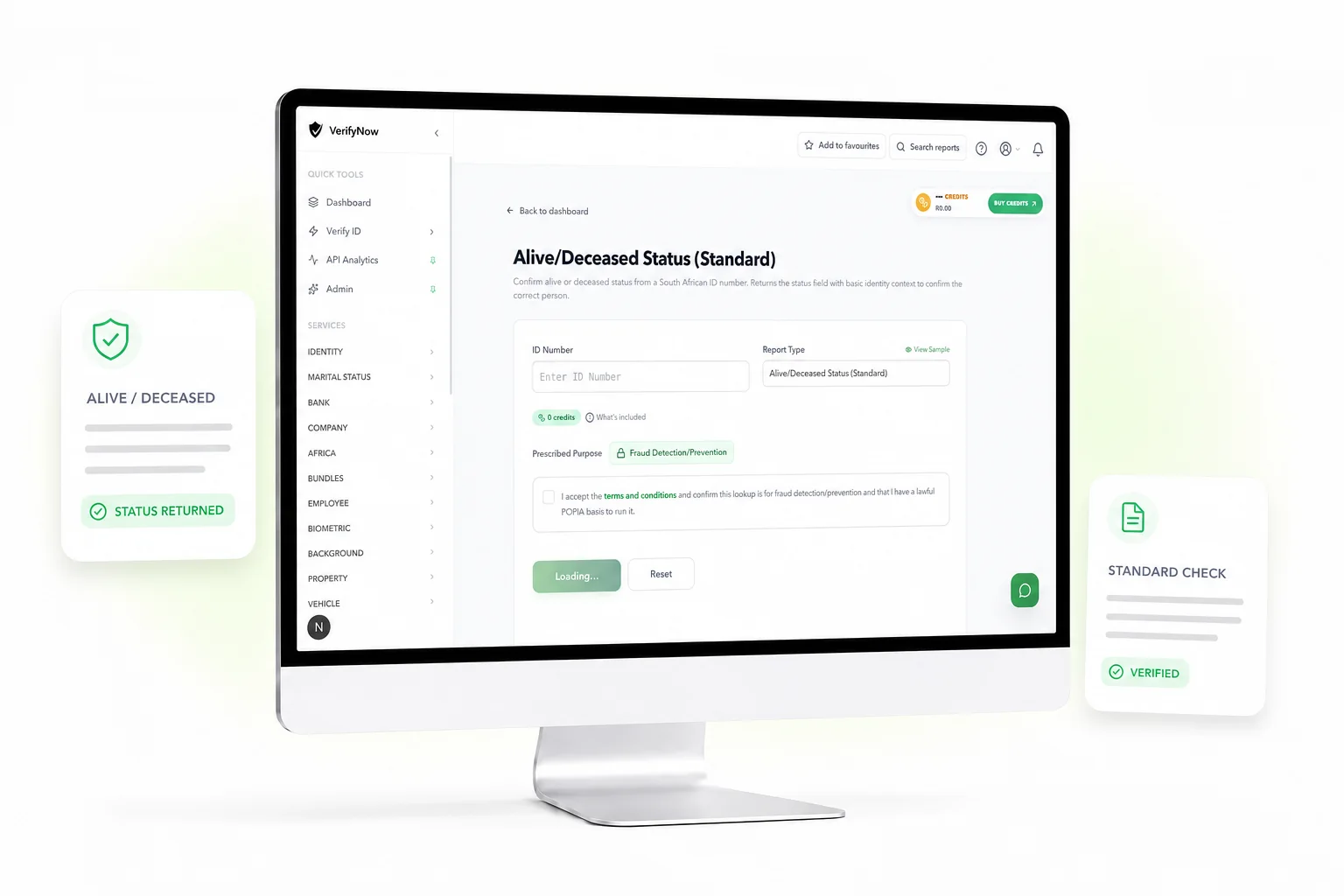
The VerifyNow Batch Alive/Deceased service checks a CSV list of South African ID numbers and returns one consolidated result file. A batch supports between 1 and 500 unique valid IDs. The dashboard offers a cached status option and an enhanced real-time option.
Open Batch Alive/Deceased after preparing the authorised list.
Batch service facts
| Item | Requirement |
|---|---|
| Access | VerifyNow dashboard |
| File format | CSV |
| Batch size | 1 to 500 unique valid IDs |
| ID format | 13-digit South African ID number |
| Processing | Queued background job |
| Result | Downloadable consolidated file |
| Service choices | Cached status or enhanced real-time status |
The dashboard shows the current per-row price and total estimate before submission. Use that live amount because service prices can change.
Prepare the CSV file
Use one row per person. The importer recognises common ID headings such as ID Number, IDNo, Identity Number and SA ID. A simple file can contain one of those headings and the authorised ID values below it.
Review the source list first:
- Keep each ID as 13 digits
- Preserve leading zeroes
- Remove blank rows
- Remove duplicate IDs
- Keep unrelated personal data out of the file
- Confirm the permitted purpose for every person in the batch
Spreadsheet software can convert long identifiers into scientific notation. Format the ID column as text before saving the CSV, then reopen the file to confirm that all 13 digits remain visible.
Choose the right batch type
Cached Alive/Deceased
The cached option returns the available status from VerifyNow's existing permitted result data. It suits workflows where the age of the displayed status meets the review purpose. The result should retain its source and status timing so the reviewer can assess freshness.
Enhanced Real-Time Alive/Deceased
The enhanced option requests a current status through the supported real-time workflow. Use it when the decision requires the live service path and the higher live price shown in the dashboard has been approved.
Choose the option from the evidence need. A routine internal reconciliation may have a different freshness requirement from a time-sensitive estate or benefit process.
How to submit the batch
1. Open the dashboard service
Sign in and visit Batch Alive/Deceased. Confirm the account has enough credits for the estimate shown after validation.
2. Upload the CSV
Select the file and allow VerifyNow to validate its rows. The page separates accepted IDs from format errors and duplicates.
3. Fix invalid rows
Download or note the validation messages, correct the source file and upload it again. A rejected row should stay outside the submitted set until its ID is confirmed.
4. Select cached or real-time
Read the service label and current per-row amount. Confirm that the selected data freshness matches the approved use case.
5. Review the estimate
The dashboard calculates the valid row count and estimated credit use. Compare it with the source list before submitting.
6. Follow the batch status
The request enters a background queue. The batch history shows progress and preserves the reference used to return to the job.
7. Download and reconcile
Download the completed result. Match each row to the source record by ID and store the result under the access and retention rules for the case.
Fields in the result
Available output can include alive or deceased status, date of death where returned, names, surname and date of birth. Field availability depends on the selected service and source result.
Keep unknown, unavailable and failed states distinct from an alive result. A downstream system should preserve the exact returned status so reviewers can see whether the source answered the question.
Completed rows use credits according to the live batch rules. Reserved credits for rows that do not complete are handled through the dashboard's batch accounting. Reconcile the final charge against completed rows rather than the original spreadsheet size.
Current VerifyNow service boundary
The service checks alive or deceased status for valid South African ID numbers in the submitted batch. It does not issue a death certificate, administer an estate, confirm a beneficiary, locate a person, or decide a legal entitlement. Date-of-death and identity fields appear only where the selected service returns them.
A cached result and an enhanced real-time result have different freshness. Keep the selected service label and result time with the downloaded evidence.
Privacy and review controls
Alive and deceased status is personal information. Limit the file to an authorised purpose and protect it before upload, during review and after download. The Information Regulator provides POPIA guidance for South African organisations.
Restrict batch access to the team handling the case. Set a retention period, remove local copies that have served their purpose and record the reviewer who acted on each result.
Batch Alive/Deceased questions
Can the file contain more than 500 IDs?
One batch accepts up to 500 unique valid IDs. Split a larger authorised population into controlled files with distinct internal references.
Can I upload an XLSX workbook?
The Batch Alive/Deceased importer uses CSV. Export the relevant worksheet as CSV and inspect the ID column before uploading.
Does every row return a date of death?
The date appears where the selected service returns it for a deceased result. Preserve an unavailable field as unavailable.
Which option should I select?
Use the freshness required by your documented purpose. The dashboard names the cached and enhanced real-time choices and shows their current prices.
Run the batch
Open Batch Alive/Deceased, upload the CSV and review the valid rows, selected service and live estimate before confirming.