
VerifyNow guide
How to Set Up Auto Top-Up on VerifyNow
A practical account-admin guide to configuring, reviewing, pausing and removing VerifyNow Auto Top-Up.
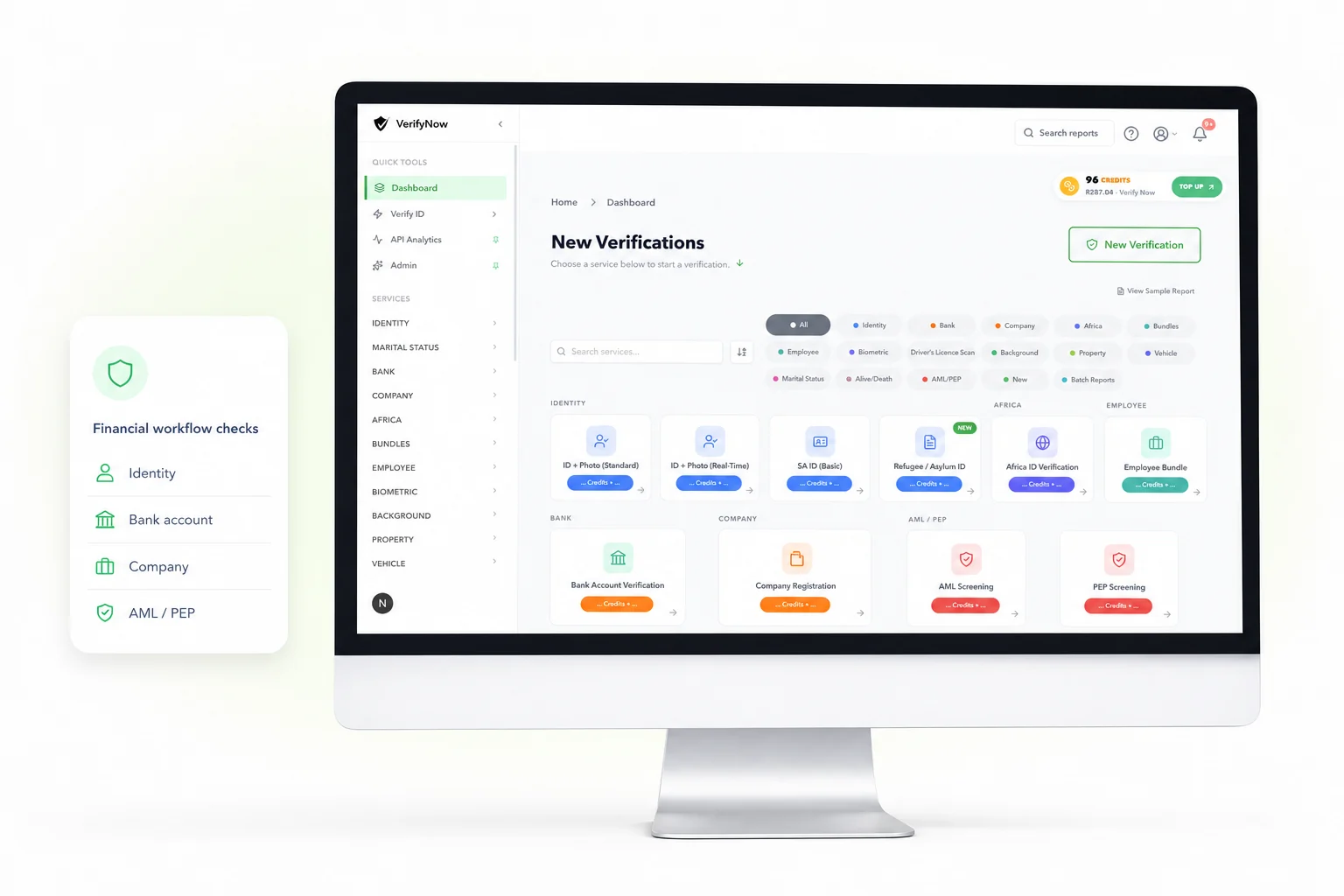
VerifyNow Auto Top-Up can add a selected credit package when an account balance reaches the threshold set by an authorised account administrator. The setting includes a maximum rand amount, a stored payment method, safety limits and a visible attempt history.
Auto Top-Up is useful for teams that run regular checks and want a controlled way to reduce interruptions caused by an empty credit balance.
Auto Top-Up quick facts
| Setting | Meaning |
|---|---|
| Credit threshold | Balance that can trigger a top-up |
| Top-up package | Number of credits purchased per successful trigger |
| Maximum amount | Rand cap for one automatic purchase |
| Payment method | Saved reusable card authorised for the setting |
| Scope | Personal account or permitted organisation account |
| Controls | Edit, pause and remove |
| Evidence | Latest attempts and top-up history |
Current credit packages and prices appear on the VerifyNow pricing page. Review that page and the values shown in account settings when choosing the package.
What to decide before enabling it
Look at the team's normal daily or weekly credit use. Choose a threshold that leaves enough time for the automatic purchase to complete before the next expected checks. Select a package that matches the routine workload and set a maximum amount that your billing owner has approved.
For an organisation account, confirm that the administrator is working in the correct organisation and has permission to manage billing. The personal and organisation settings belong to separate credit balances.
How to set up Auto Top-Up
1. Sign in as an authorised administrator
Open the VerifyNow dashboard and go to account billing settings. The Auto Top-Up section shows whether the current personal or organisation scope already has a configuration.
2. Enter the credit threshold
The threshold is the balance at which the account becomes eligible for an automatic top-up. Use a whole-credit value based on the services your team runs most often.
3. Choose the top-up package
Select the number of credits to add after a successful trigger. The settings screen shows the available package and amount before confirmation.
4. Add a maximum amount
The maximum amount limits one automatic purchase. It should cover the selected package while staying inside the budget approved for the account.
5. Authorise the payment method
Complete the secure card-authorisation flow shown in the dashboard. VerifyNow stores the reusable payment reference needed for later top-ups rather than asking the user to enter the card for every trigger.
6. Review and enable
Read the threshold, credit package, amount and account scope together. Enable the setting after confirming that each value belongs to the intended account.
What happens when the threshold is reached
VerifyNow evaluates the configured balance and applies built-in cooldown and daily-attempt controls. An eligible account can start the saved top-up transaction. A successful payment adds the selected credit package to that same account scope.
The settings panel shows recent activity. Use this history to reconcile the date, amount, status and credits with the billing record. A payment that needs further cardholder action appears in the attempt state for an authorised user to review.
The account remains subject to the safety limits shown in the live settings. These controls protect against rapid repeated purchases when several requests arrive around the threshold.
Personal and organisation configurations
A personal Auto Top-Up applies to the signed-in user's own credit balance. An organisation Auto Top-Up applies to the selected organisation balance and follows its billing permissions.
Check the active account context before editing the setting. This matters when one administrator belongs to several organisations or also uses a personal VerifyNow balance.
Each scope has its own history. Reconcile the top-up with the scope named in the dashboard rather than relying only on the person who configured it.
How to pause, edit or remove Auto Top-Up
Pause the setting when the team expects a quiet period, changes its billing process or needs to investigate an attempt. Pausing keeps the configuration available for later review while stopping new automatic purchases.
Edit the threshold, package or amount when usage changes. Review the updated values before saving because they control the next eligible transaction.
Remove the configuration when the stored payment authority should end for that account. An authorised administrator can create a new configuration later through the normal setup flow.
Current VerifyNow service boundary
Auto Top-Up is an account billing feature. It adds the selected VerifyNow credit package after an eligible balance trigger and successful payment. It does not guarantee uninterrupted third-party source availability, bypass account permissions, change the price of a verification service, or approve a verification result.
The live dashboard remains the source for the current package price, thresholds, limits, payment state and account scope.
Account-control practices
Assign billing permission to the smallest suitable group. Review Auto Top-Up activity with the normal finance reconciliation. Keep the spend cap aligned with an approved budget and update access promptly when an administrator's role changes.
Use dashboard history when investigating a charge. It gives the account scope and attempt state needed to distinguish a successful top-up from a pending or failed attempt.
Auto Top-Up questions
Can an organisation member create the setting?
The user needs the billing permission required by the organisation. The dashboard shows the available controls for the current role.
Will every low-balance event create a purchase?
Eligibility also depends on the saved configuration, payment state and the live safety controls. Review the latest attempt in account settings for the result.
Can I change the number of credits later?
Yes. An authorised administrator can edit the package and review the new amount before saving it.
Where can I see current prices?
Use the VerifyNow pricing page and the amount shown in Auto Top-Up settings. This guide leaves prices dynamic.
Configure the account
Sign in to VerifyNow, open billing settings and choose the personal or organisation scope that should receive automatic credits.