
VerifyNow guide
Reviewed by VerifyNow Compliance Team, Compliance and Identity Verification Team on 5 August 2026
How to Scan a Vehicle Licence Disc in South Africa
Scan a South African vehicle licence disc PDF417 barcode, read the encoded vehicle details and add a number plate comparison with VerifyNow.
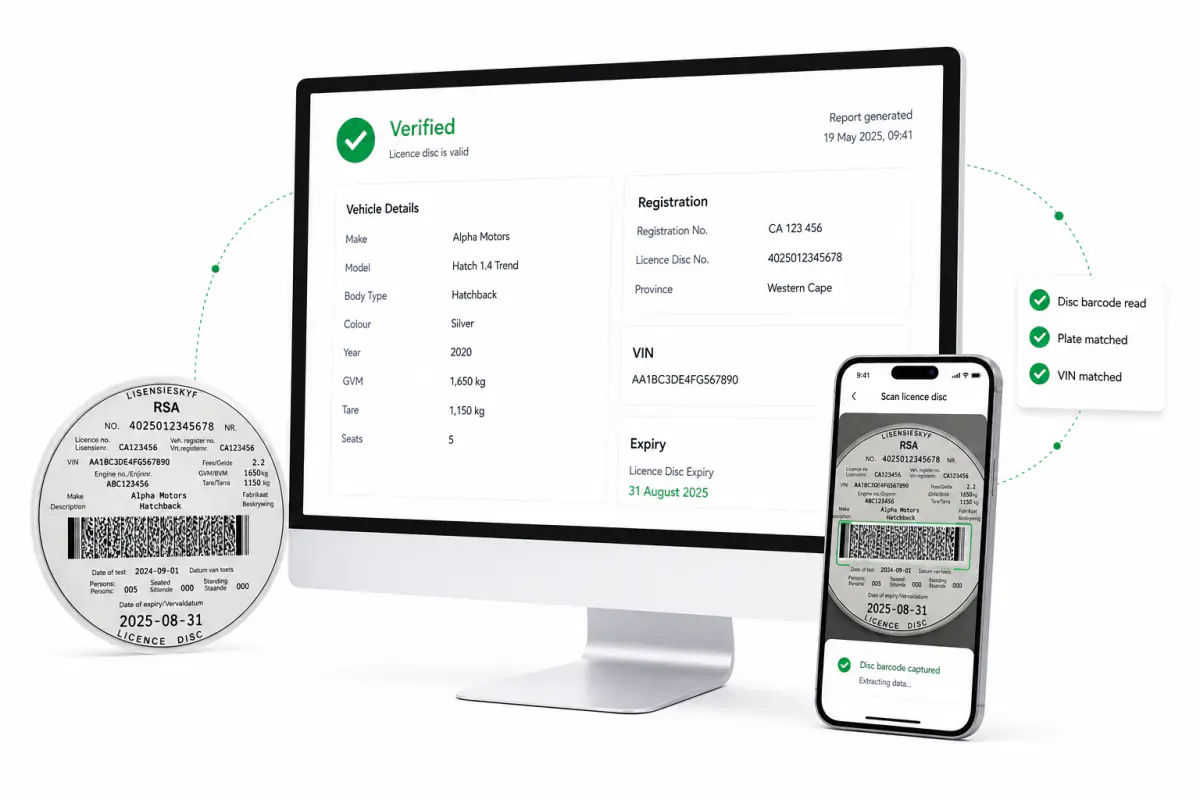
How to Scan a Vehicle Licence Disc in South Africa
A South African vehicle licence disc scanner reads the PDF417 barcode printed on the disc and turns its encoded vehicle fields into a structured report. VerifyNow offers the scan through its dashboard and API. A number plate comparison can be added when the workflow needs a separate vehicle record.
Open the Vehicle Licence Disc Scanner, place the disc on a flat surface and take a clear photograph. Keep every edge in frame. Reflections should sit away from the barcode and printed fields.
The vehicle licence disc service page includes an illustrative report showing the exact layout used by VerifyNow.
What the vehicle licence disc barcode can contain
Supported South African vehicle licence disc barcodes can return fields such as:
- Registration number
- Vehicle identification number
- Make and model
- Engine number
- Vehicle class and colour
- Encoded expiry date
The available fields depend on the disc format and the values stored when the disc was issued. The report labels empty values clearly and shows the source of the result.
Current issued MVL fields and evidence
The current issued MVL result names the format version, licence or registration number, vehicle register number, control or disc number, VIN, engine number, make, series or model, colour, vehicle description and expiry date. Legacy formats can also return a country code or vehicle class. The response keeps every populated position in barcodeFields and places unresolved issued-format metadata in unmappedBarcodeFields.
Image uploads run printed-field enrichment by default. Available gross vehicle mass, tare, test date and seated or standing capacity are added with visual_ocr source evidence. Set include_visual_fields to false in an external API image request when the workflow only needs barcode fields. A decoded barcode_text request stays barcode-only. Each named field carries its source and confidence in fieldEvidence.
How to photograph the disc
Use the original camera image
Take the photo with the phone camera or upload the original file. Messaging apps often compress fine barcode detail. The full-resolution image gives the scanner more horizontal information to read.
Place the disc flat
A plain, flat surface keeps the barcode straight. Hold the phone directly above the disc. A tilted photo changes the width of the PDF417 bars across the image and can reduce scan quality.
Move reflections away
Vehicle licence discs are often photographed through glass or a plastic holder. Shift the phone or the light until the barcode has even contrast. A small movement can move a bright reflection away from the bars.
Keep the full disc visible
Include the complete barcode and the printed fields. The scanner can use the visible text as a lower-confidence recovery path when glare blocks the barcode. The report labels this result as a visual read so the reviewer can see how the fields were captured.
What happens after upload
The scanner first looks for the PDF417 barcode. A complete barcode result receives structural checks and a confidence label. The encoded expiry date is compared with the report date so the result can show whether that date is current or expired.
When the image supports a visual read, VerifyNow can return the printed registration, VIN, make, engine and disc dates with a medium or low confidence label. Reviewers can then decide whether to retake the image or use the available fields for a limited workflow.
VerifyNow uses the disc image only to process the request. The uploaded image is cleared after the workflow. Transaction records retain the audit and billing details required for the report.
Barcode Verification or Number Plate Verification
The dashboard offers two report choices.
Current dashboard label: Disc + Comprehensive Vehicle Check includes the disc result, comparison fields and complete Comprehensive Vehicle Check sections. The external API
platereport continues to use number plate lookup terminology.
Licence Disc Barcode Verification reads the disc and returns the supported vehicle fields, barcode checks and encoded expiry status. It suits capture workflows where the card-sourced information is the required evidence.
The evidence in this disc workflow comes from the barcode printed on the licence disc.
Disc + Number Plate Verification starts with the barcode report and adds a number plate lookup. VerifyNow compares the returned registration and available vehicle fields with the disc. Each comparison remains visible in the report.
Current prices appear on the VerifyNow pricing page. The disc scanner and the driver's licence barcode scanner use separate pricing rows.
Reading the report
The result screen leads with the expiry status and vehicle identity. Structural checks sit alongside the main fields. A number plate report adds its comparison section below the disc result.
Successful dashboard checks include an authenticated PDF. The report carries its transaction reference and VerifyNow authentication code. This gives the reviewer a fixed copy of the evidence returned during the scan.
The licence disc report covers fields read from the supplied disc. It does not include the registered owner or driver. Finance and stolen-history fields belong to the separate vehicle check, and only when that check returns them.
Useful business workflows
Fleet teams can capture a vehicle record during onboarding or periodic reviews. Rental businesses can use the report at vehicle intake. Dealers can compare a trade-in disc with a number plate lookup. Insurers can add the result to motor-policy or claims evidence. Logistics operators can keep a repeatable vehicle-assignment record. Security teams can use it during controlled-site vehicle registration.
Industry guidance is available for mobility and transport, automotive dealers and insurance teams.
Vehicle licence disc scanner API
The VerifyNow API documentation covers image and decoded-barcode inputs. The standard integration supports barcode verification and number plate comparison. Enabled API accounts can retain an existing VIN comparison contract where that report type is available.
API callers should send an idempotency key with each request and confirm authority to process the vehicle information. Image requests can allow visible-field recovery when the PDF417 barcode cannot be read.
Frequently asked questions
Can I scan a vehicle licence disc with a phone?
Yes. Use the phone camera to take an original image with the full disc visible. A flat surface, straight angle and even light improve the barcode detail.
Does the report show the disc expiry date?
The report shows the expiry date encoded in the barcode or read from the visible disc. It labels the capture method and evaluates that date on the report date.
Can I compare the disc with a number plate lookup?
Yes. Choose Disc + Number Plate Verification before scanning. The report keeps the disc fields and lookup comparison in separate sections.
Can I download the result?
Successful dashboard scans include an authenticated PDF action. The PDF uses the same result fields shown on screen.
Start a vehicle licence disc scan
Open the Vehicle Licence Disc Scanner to photograph a disc. Teams building an automated workflow can use the integration guide and the API reference.